


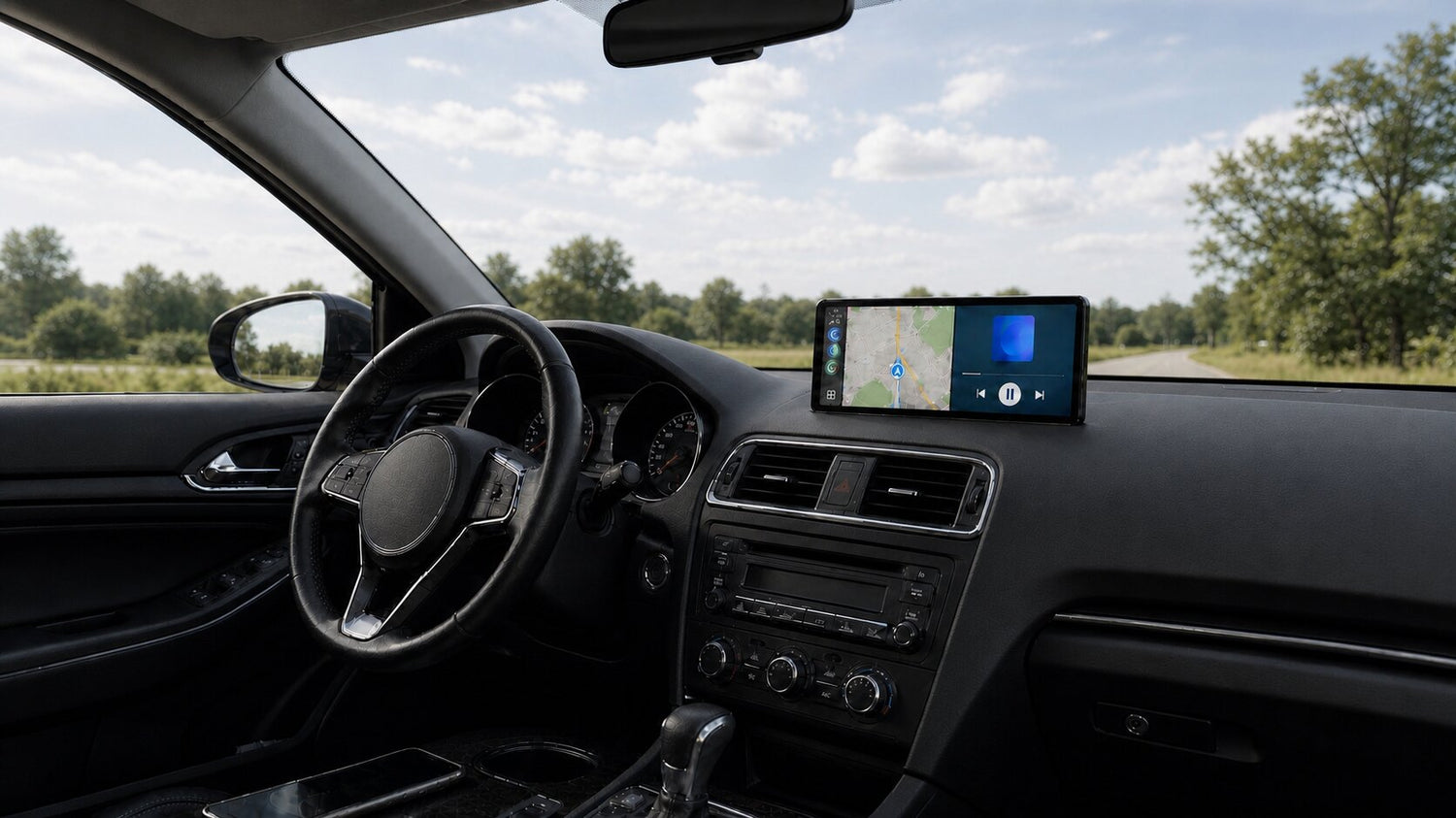
How to Reduce Wireless CarPlay Audio Delay in Your Car
A small delay between tapping a control and hearing the result can make wireless CarPlay feel less responsive than it should. You may notice late navigation prompts, slow play-and-pause response, delayed track changes, or an awkward pause during calls. The good news is that CarPlay audio delay often comes from the connection path rather than the screen itself, so you can usually narrow down the cause with a few controlled tests.
Start by identifying where the sound travels. A short route—phone directly to the car’s original Bluetooth system—usually has fewer opportunities for added latency than a route that sends audio from the phone to a portable display and then from the display to the car through FM or AUX. Connection settings, wireless interference, vehicle processing, phone software, and the selected app can also affect timing.
This guide walks through the checks in a practical order. Make changes only while parked, and test after each step so you know which adjustment actually helped.
Quick Fix Checklist for Wireless CarPlay Audio Delay
- Map the current audio route. Confirm whether sound goes directly from the phone to the car or passes through the portable CarPlay display first.
- Test the car’s normal Bluetooth audio. Disconnect CarPlay temporarily and check whether music controls, calls, and navigation audio already lag when the phone is paired only with the vehicle.
- Check Bluetooth and Wi-Fi. Wireless CarPlay relies on both, so make sure they are enabled and the CarPlay network can join automatically.
- Restart the phone, display, and vehicle system. A clean restart can clear a connection state that has become unstable.
- Forget and rebuild the connection. Remove the saved CarPlay vehicle and pair it again if a restart does not help.
- Avoid an unnecessary audio relay. If your car already has good Bluetooth audio, use Display Only Bluetooth Mode so the phone sends sound directly to the car.
- Compare one output at a time. Test Bluetooth, AUX, FM, or the built-in speaker separately rather than changing several variables at once.
- Check software and firmware. Update the phone and use the current instructions for your CarPlay display and vehicle system.
First, Identify What Kind of Delay You Are Hearing
“Audio delay” can describe several different symptoms. Identifying the exact one keeps you from troubleshooting the wrong part of the system.
| Symptom | Likely Area to Check First | Useful First Test |
|---|---|---|
| Play, pause, or track changes react late | Audio route, vehicle Bluetooth processing, or app streaming | Play a downloaded track through the car’s normal Bluetooth connection |
| Navigation prompts arrive after a turn or appear out of sync | Wireless link, audio relay, or navigation app | Compare the same route with phone-to-car Bluetooth and another audio output |
| Calls have an uncomfortable conversational delay | Call audio route, microphone route, or cellular connection | Make a safe parked test call using only the car’s original Bluetooth |
| Audio cuts out as well as lagging | Wi-Fi/Bluetooth stability, interference, power, or connection state | Restart all devices and test with the phone close to the display |
| Only one app is delayed | App or streaming source | Compare a second app and locally stored audio |
If the delay exists even when the portable screen is disconnected, the screen is unlikely to be the only cause. Focus first on the phone-to-car Bluetooth connection, the vehicle’s audio processing, or the app. If the delay appears only after the display is added, examine the CarPlay connection and audio-output route.
Common Causes of CarPlay Audio Delay
1. The Audio Takes a Multi-Step Route
A common portable-screen setup sends the CarPlay connection to the display, then sends audio from the display to the vehicle. The path may look like this:
Phone → portable CarPlay screen → FM or AUX output → factory audio system
Even when the last step uses an AUX cable, the phone-to-screen part is still wireless. Each handoff may add buffering or processing. The result can be a longer wireless CarPlay audio delay than you hear with a direct phone-to-car connection.
2. The Phone Is Using the Wrong Audio Destination
Your phone may remember the vehicle, the portable display, headphones, and other Bluetooth accessories. If the selected output changes or reconnects in an unexpected order, the CarPlay interface can appear normal while sound comes from the wrong device or takes a less efficient route.
Before changing advanced settings, open the phone’s audio-output controls and confirm where music and calls are being sent. Also check the sound-output mode on the portable display. A simple routing mismatch can look like a performance problem.
3. Bluetooth or Wi-Fi Is in an Unstable State
Wireless CarPlay uses wireless connections for pairing and data transfer. If Bluetooth is reconnecting repeatedly, Wi-Fi is not joining correctly, or the phone is switching among saved networks and accessories, response can become inconsistent.
Apple recommends confirming that Bluetooth and Wi-Fi are turned on for wireless CarPlay, checking that Auto-Join is enabled for the CarPlay network, restarting the iPhone and car, and forgetting the saved CarPlay vehicle before setting it up again when needed. Follow those checks one at a time and retest after each change.
4. The Vehicle Adds Its Own Processing
Some factory audio systems apply equalization, volume leveling, surround effects, or other digital processing. Bluetooth behavior also varies by vehicle. If ordinary phone audio already responds slowly through the factory system, adding CarPlay will not necessarily remove that existing delay.
Use the car’s standard Bluetooth playback as your baseline. If the baseline is slow, look for vehicle audio settings that can be temporarily disabled for testing, and consult the vehicle manual before changing anything unfamiliar.
5. The Delay Comes from the App or Data Connection
A streaming app may pause while it loads data, and a navigation app may behave differently from a music app. A call can also be affected by the cellular network. If only one source is slow, test another app or a downloaded audio file before rebuilding the entire CarPlay setup.
6. Software or Firmware Needs Attention
Phone updates, vehicle infotainment updates, and display firmware can change wireless behavior. Keep the iPhone on a current supported iOS version, check the vehicle manufacturer’s guidance, and use the instructions intended for your exact portable-display model. Do not install firmware intended for a different model or interrupt an update in progress.
Step-by-Step: How to Troubleshoot CarPlay Sound Delay
Step 1: Create a Baseline Without CarPlay
Park the vehicle, disconnect the portable CarPlay display, and pair the phone directly with the vehicle as you normally would. Test three things:
- Start and pause a downloaded song.
- Change tracks with the phone and, where supported, the steering-wheel controls.
- Make a short test call and check both speaker and microphone timing.
If the delay is already present, record that result. It points toward the original Bluetooth system, phone, app, or cellular connection. If the baseline feels responsive, reconnect CarPlay and continue.
Step 2: Draw the Actual Audio Path
Do not assume that the selected label matches the route you are hearing. Verify it. Is audio coming from the portable screen’s speaker? Is the vehicle radio tuned to an FM frequency? Is an AUX cable connected from the display to the car? Or is the phone still connected directly to the vehicle’s Bluetooth?
Write the route in one line. This makes it easier to see whether the display is acting as an extra audio relay.
Step 3: Check the Wireless CarPlay Connection
On an iPhone, confirm that Bluetooth and Wi-Fi are both on. Check the CarPlay Wi-Fi network and make sure Auto-Join is enabled. Then restart the phone, the portable display, and the vehicle’s infotainment system. After everything restarts, connect again and repeat the same audio test.
If the behavior does not improve, go to Settings → General → CarPlay, select the saved vehicle or display, choose Forget This Car, and complete the pairing process again. Apple’s current CarPlay troubleshooting guide also recommends making sure Siri is enabled and checking for current vehicle firmware.
Step 4: Remove Competing Bluetooth Connections
Temporarily disconnect earbuds, adapters, and other nearby Bluetooth accessories that the phone might automatically join. Keep only the connections required for the test. Once you have a stable route, reconnect other devices one at a time.
This is also a good moment to check separate media-audio and call-audio settings in the vehicle, if the factory system exposes them. A car can sometimes be paired for calls but not media, or vice versa.
Step 5: Compare the Available Audio Output Modes
Test each usable output separately with the same phone, app, track, and vehicle volume. Do not judge the modes using different content because streaming conditions can change the result.
| Audio Mode | Typical Route | When It Makes Sense | Delay Consideration |
|---|---|---|---|
| Display Only Bluetooth Mode | Phone → vehicle Bluetooth → vehicle speakers | The car already has Bluetooth audio you trust | Avoids using the portable display as an extra audio relay |
| AUX from the display | Phone → display → AUX → vehicle speakers | The car has AUX but no suitable Bluetooth audio | The final hop is wired, but the phone-to-display stage remains |
| FM transmission | Phone → display → FM → vehicle radio | The car lacks Bluetooth audio and AUX | Adds another wireless stage and can be affected by local interference |
| Built-in speaker | Phone → display speaker | Initial setup, testing, or temporary use | Useful for isolating whether the vehicle audio path contributes to the delay |
The best choice depends on the interfaces your vehicle actually supports. A direct phone-to-car Bluetooth route is a strong starting point when that connection already works well. AUX and FM remain useful alternatives for vehicles without suitable Bluetooth audio.
Step 6: Use Wired CarPlay as a Diagnostic Test
If your display supports both wireless and wired CarPlay, compare them. A stable wired session can help show whether the wireless CarPlay link is part of the problem. Use a direct, good-quality cable and the correct port rather than a chain of adapters.
This test does not automatically identify the audio-output stage, so keep the same sound route while changing only the CarPlay connection. If wired CarPlay improves responsiveness, revisit the wireless pairing, interference, and software checks.
Step 7: Update Carefully and Retest
Check for a current iOS release, relevant vehicle infotainment guidance, and firmware instructions for the exact portable display. After any approved update, restart the system and repeat the same baseline test. If the issue continues, note the phone model, iOS version, display model, selected audio mode, vehicle year and model, and the apps affected before contacting support.
Why Display Only Bluetooth Mode Can Help
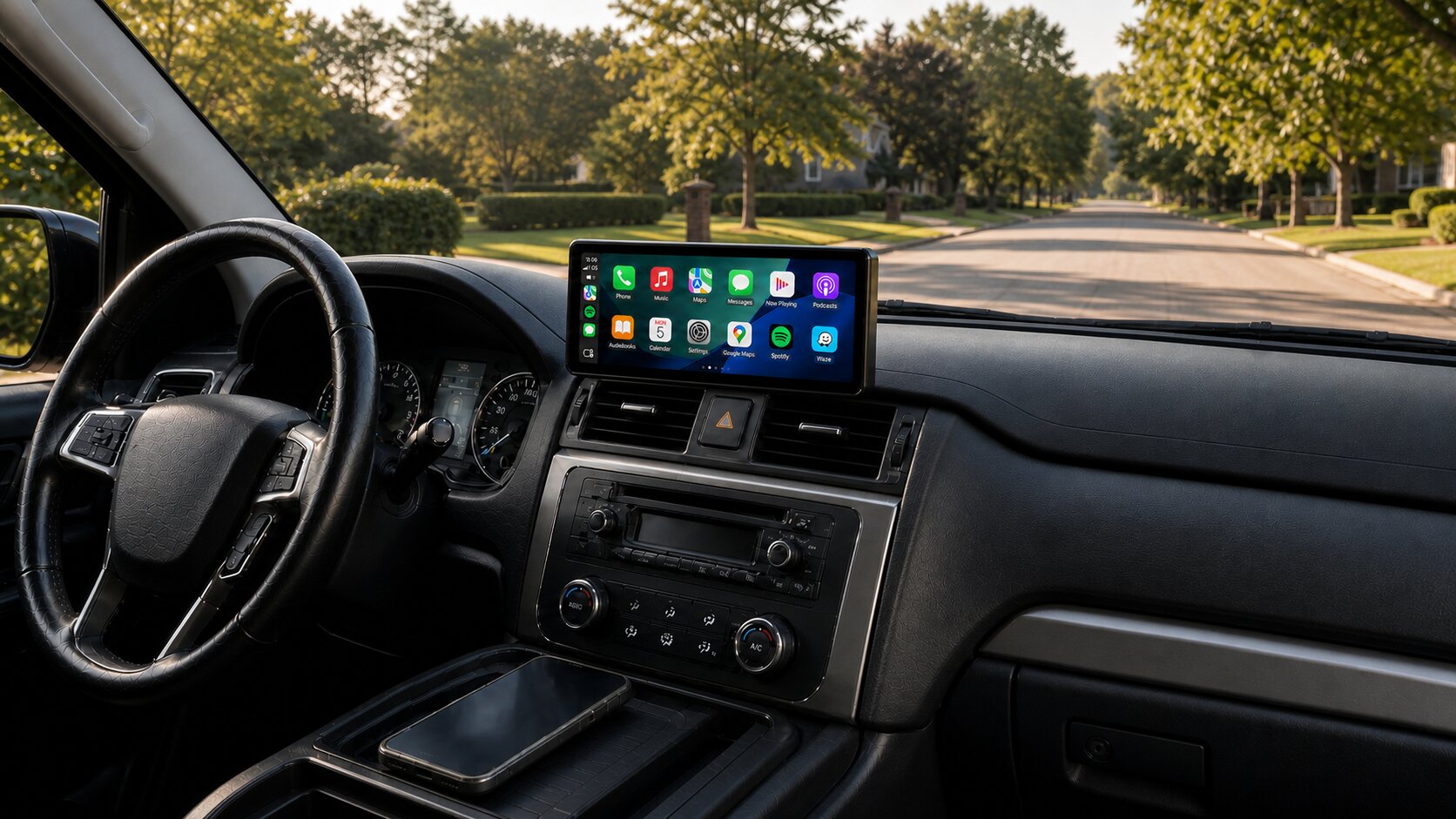
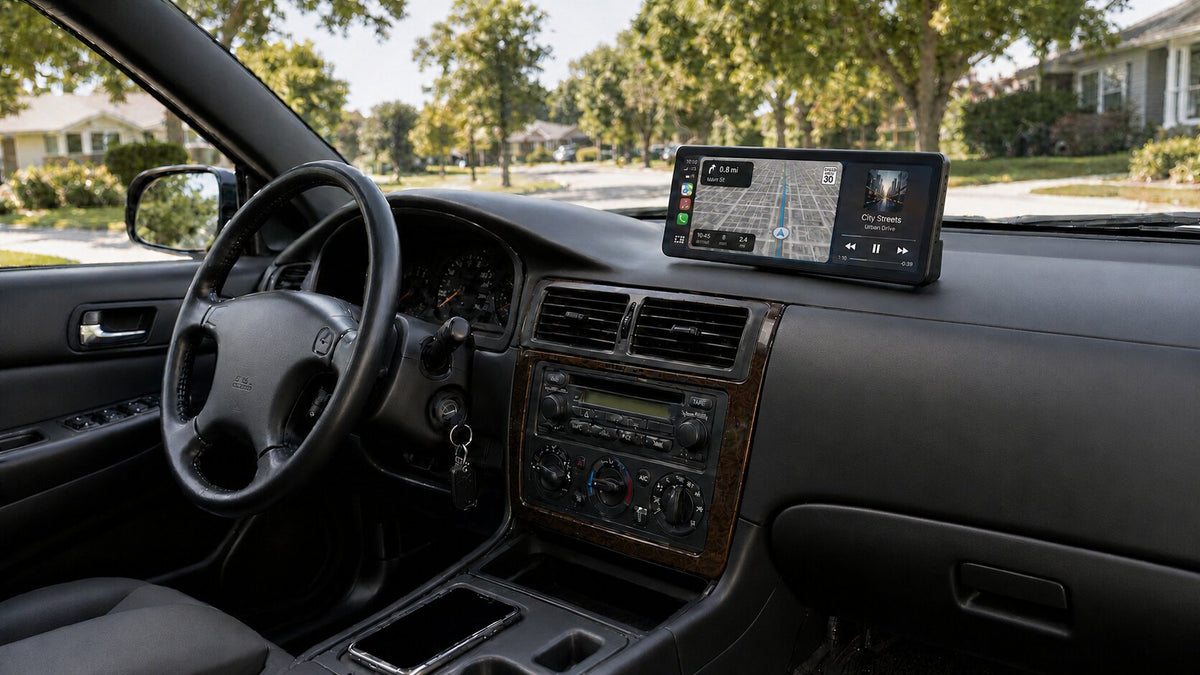
Display Only Bluetooth Mode separates the visual experience from the audio path. The CarpodGo screen handles the CarPlay interface, while the phone stays connected to the vehicle’s original Bluetooth system for music, navigation prompts, calls, and supported factory controls.
The simplified arrangement looks like this:
CarPlay visuals and touch: Phone → CarpodGo display
Audio and supported vehicle controls: Phone → original vehicle Bluetooth system
This is different from describing the product as a generic Bluetooth relay. The CarpodGo display does not need to receive the audio and pass it onward to the car. Removing that extra stage can help reduce the opportunity for additional delay while preserving the phone-to-car audio behavior you already know.
Display Only Bluetooth Mode cannot guarantee zero delay. The vehicle, phone, apps, wireless environment, and cellular network can still affect timing. Its advantage is a cleaner routing strategy when the original Bluetooth system already performs well.
How to Set Up Display Only Bluetooth Mode on CarpodGo T4 or T4 Plus
- While parked, pair the phone with the vehicle’s original Bluetooth system.
- Confirm that music and calls play correctly through the vehicle before connecting CarPlay.
- Connect the phone to CarPlay on the CarpodGo display.
- Open the CarpodGo sound-output settings and select Display Only Bluetooth Mode. Some interface or FAQ references may show the label Dual BT (Display only).
- Play a downloaded track and confirm that sound comes from the vehicle through the phone-to-car Bluetooth connection.
- Test a navigation prompt, a parked call, and supported steering-wheel controls.
If audio comes from the CarpodGo screen, recheck both the display’s sound-output setting and the phone’s current media destination. If the car supports calls but not Bluetooth music, Display Only Bluetooth Mode may not provide the media route you need; consider a compatible AUX solution or another available output.
The CarpodGo T4 and T4 Plus support Display Only Bluetooth Mode, FM transmission, AUX output, and a built-in speaker. They also support wired and wireless CarPlay, giving you several controlled ways to test the connection and choose the route that fits the vehicle.
What to Do If the Delay Is Still There
If none of the checks solves the problem, isolate the remaining variables:
- Test a second compatible phone with the same display and vehicle.
- Test the same phone and display in another vehicle, if practical.
- Compare a downloaded track with a streaming track.
- Compare two CarPlay apps.
- Record whether the issue affects music, navigation, calls, or all three.
- Note whether the delay starts immediately or only after a longer drive.
These results tell support whether to focus on the phone, app, vehicle Bluetooth implementation, portable display, or audio-output path. The CarpodGo FAQ explains current sound-output behavior and the use of the original car microphone and supported steering-wheel controls in Display Only mode.
Frequently Asked Questions
Why does wireless CarPlay have audio delay?
Wireless CarPlay sound can be affected by the phone-to-display connection, the selected audio output, Bluetooth or Wi-Fi state, vehicle processing, app behavior, and additional relays such as display-to-FM routing. The exact cause varies, so test one stage at a time.
Does AUX eliminate wireless CarPlay audio delay?
Not necessarily. When an AUX cable runs from a portable display to the car, the final stage is wired, but audio may still travel wirelessly from the phone to the display first. AUX can be practical and stable, but it does not make the entire route wired.
Can FM transmission cause CarPlay sound delay?
FM adds another transmission stage between the display and vehicle radio, so it can contribute to a longer route. It can also be affected by local frequency congestion or interference. FM remains useful when the vehicle has neither suitable Bluetooth audio nor AUX.
Should I turn off Bluetooth when using wireless CarPlay?
No. Bluetooth is part of wireless CarPlay setup and operation. Apple recommends confirming that both Bluetooth and Wi-Fi are enabled. With Display Only Bluetooth Mode, the phone also needs its connection to the vehicle’s Bluetooth system for the direct audio route.
Will Display Only Bluetooth Mode remove every delay?
No. It can help by removing the portable display from the audio relay path, but it cannot control the vehicle’s own processing, phone software, app buffering, wireless conditions, or cellular-call latency.
Do steering-wheel controls still work in Display Only Bluetooth Mode?
Supported volume and track controls can continue working through the phone’s original connection to the vehicle. Actual behavior depends on what the car already supports during normal Bluetooth media playback.
Which microphone handles calls?
When the phone is connected to a compatible vehicle Bluetooth system in Display Only mode, the vehicle’s original microphone can remain in the call path. If audio is handled by the portable display instead, microphone behavior follows that selected mode.
Final Recommendation
To reduce CarPlay audio delay, begin with the route—not a random list of settings. Establish how the phone behaves with the car’s normal Bluetooth, verify Bluetooth and Wi-Fi, restart and rebuild the wireless CarPlay pairing if needed, then compare audio outputs one at a time.
If the car already has Bluetooth audio that sounds good and responds well, Display Only Bluetooth Mode is the most logical starting point. It keeps CarpodGo focused on the CarPlay display while the phone sends audio directly to the original vehicle system, avoiding an unnecessary relay through the portable screen.
Ready to add a smoother CarPlay display while keeping your existing factory stereo? Explore the CarpodGo T4 and T4 Plus and choose the connection and screen size that fit your vehicle.

Laat een reactie achter
Deze site wordt beschermd door hCaptcha en het privacybeleid en de servicevoorwaarden van hCaptcha zijn van toepassing.