


Wireless CarPlay vs Wired CarPlay: Which Is Better for Daily Driving?
You get into the car for a quick errand, and plugging in your iPhone feels like one extra step. On a longer drive, though, having a cable ready can be reassuring. That everyday tradeoff is at the heart of the wireless CarPlay vs wired CarPlay decision.
Wireless CarPlay is a practical choice when convenience comes first. Wired CarPlay is worth choosing when you prefer a physical connection and want to simplify troubleshooting. Neither connection is the best fit for every trip. Your charging routine, audio setup, and experience with your particular phone and display matter more than a universal winner.
Wireless vs Wired CarPlay at a Glance
| Consideration | Wireless CarPlay | Wired CarPlay |
|---|---|---|
| Daily routine | Convenient when you want to leave your phone in a pocket or bag after setup. | Requires plugging in and unplugging your phone. |
| Connection checks | Check pairing, wireless settings, and the display's connection instructions. | Check the data cable, connectors, and correct CarPlay port. |
| Phone charging | Plan a separate charging option if needed. | Check the connected port's charging capability; fast charging is not guaranteed. |
| Stability | Useful when the connection works reliably in your usual driving conditions. | A useful alternative when diagnosing wireless interruptions; cable faults can still interrupt it. |
| Audio delay | Evaluate the complete route from phone to speakers. | A cable does not guarantee zero delay throughout the audio system. |
| Best starting point | Short trips and frequent stops. | Drivers who already plug in regularly or want a physical connection. |
What Changes When You Switch Between Wireless and Wired CarPlay?
The main choice is how your iPhone connects to a compatible CarPlay system. Apple provides setup instructions for both USB and wireless connections. Wireless setup involves wireless settings and pairing; wired setup requires a compatible USB connection. For initial setup, follow Apple's CarPlay guide alongside your display's manual.
When comparing the two, start with the tasks you actually use: opening your route, selecting a playlist, and taking a call. Ask whether each connection handles those tasks consistently in your car. A connection that fits your routine is more valuable than a feature you rarely need.
Wireless CarPlay Benefits: Easier Short Trips
Wireless CarPlay's clearest advantage is the routine it removes. If your day involves school drop-offs, grocery stops, and a commute, reaching for a cable at every departure can become tiresome. A wireless setup is appealing when you want to settle into the seat and leave your phone put away.
It also gives you more freedom over where to store the phone. You do not need to choose a storage spot based entirely on cable reach. Keep it secure, however, and make sure your chosen location works with your charging plan.
Before making wireless your default, try it across several ordinary journeys. Check whether the intended phone connects, whether navigation audio reaches the expected speakers, and whether calls work as you expect. Do this while parked. A good daily setup should require little attention once you start driving.
Wired CarPlay Benefits: A Connection You Can Check Directly
A wired setup gives you a physical connection to inspect. If something stops working, you can reseat the connector or try another suitable cable. That can make it easier to narrow down a problem than changing several wireless settings at once.
For someone who already plugs in a phone at the start of every journey, wired CarPlay may fit naturally. Keeping one appropriate cable in the car also avoids the frustration of discovering that the cable in your bag is missing or unsuitable.
Pay attention to the complete cable arrangement. Choose a length that reaches comfortably without leaving loops around the gear selector or other controls. Confirm which port supports wired CarPlay; a port intended only for power is not interchangeable with a data connection. For a portable display, follow its own instructions rather than assuming the car's original USB socket connects to the new screen.
Stability and Latency: Test the Whole Setup
Stability and latency describe different problems. Stability is whether the connection remains available. Latency is the delay between an action and the response you see or hear. A screen can stay connected while a track change sounds delayed, and an occasional disconnection does not tell you how responsive the system is during normal use.
If wireless operation is inconsistent, trying wired CarPlay on a system that supports it is a useful comparison. It does not prove that wireless is always unreliable. Likewise, a wired interruption may point to a cable or connector rather than a problem with CarPlay itself.
Keep the comparison fair: use the same phone, app, and speaker route. Change one connection setting at a time. Otherwise, switching both the phone-to-display connection and the audio output can make it hard to tell what improved.
The Audio Route Deserves Its Own Check
A portable display adds a second question: how will sound reach the car's speakers? Do not assume that choosing wired CarPlay automatically determines the entire sound path.
For example, CarpodGo T4 / T4 Plus offers Display Only Bluetooth Mode, which lets the screen handle the display while phone audio goes through the car's original Bluetooth or AUX system. The product page also lists AUX output, FM transmission, and a built-in speaker. These options should be considered separately from the choice between wired and wireless CarPlay.
When evaluating delay, listen for navigation prompts and test a call while parked. Avoid judging the whole setup only by how quickly a song skips. There is no single latency figure that applies to every phone, connection, and vehicle audio system.
Battery and Charging: Plan for Your Arrival
Choose a charging routine based on what you need after the drive. If you are heading to work with plenty of battery remaining, leaving the phone unplugged may be convenient. If you will need it for hours after arriving, a charging plan may matter more than keeping the console cable-free.
Wireless CarPlay does not itself mean wireless charging. Treat charging as a separate feature to verify. With wired CarPlay, check what the relevant port actually provides; support for a data connection is not a promise of a particular charging speed.
For the T4 series, this article makes no claim about phone charging wattage or fast charging through the wired CarPlay connection. Confirm the current manual or ask support before relying on that connection as your main phone charger.
Which Connection Fits Your Daily Driving?
For a Short Commute or Frequent Errands
Try wireless first if minimizing repeated steps is your priority. The practical question is whether it works consistently on the trips you make most often. If it does, keep a compatible cable available as an alternative rather than changing a routine that already works.
For Longer Drives
Consider wired if you prefer a physical connection, especially when you already plan to plug in. Before a long journey, verify both your CarPlay connection and your charging arrangement. Test your intended setup ahead of departure rather than making a first attempt on the road.
A cable does not improve cellular coverage. Keep connection troubleshooting separate from questions about whether an online app can obtain new information during the trip.
For a Shared Car
Agree on which phone should connect before leaving. Where multiple phones have been paired, consult the display's instructions for choosing the intended device. Do not assume it will always select the driver's phone automatically. A predictable handover is more useful than saving a few seconds during setup.
Why Having Both Options Makes Sense
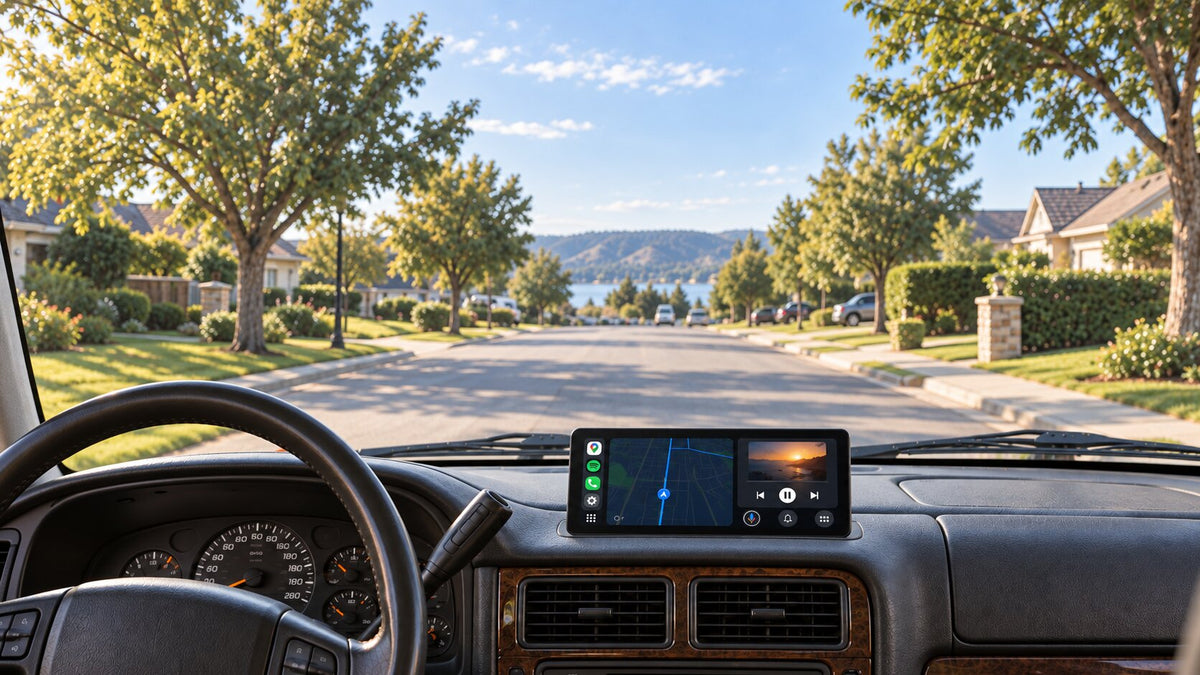
You do not have to choose one connection permanently. CarpodGo T4 / T4 Plus supports both Wireless CarPlay and Wired CarPlay, allowing you to choose a connection for the journey. It is a portable display designed to add CarPlay without replacing the factory stereo.
That flexibility is useful if you want wireless convenience for errands and a wired option for other situations. Choose the display based on your mounting space and everyday needs, then confirm the relevant port and cable requirements before setup. For additional product guidance, visit the CarpodGo FAQs; use the current T4 documentation for model-specific instructions.
What to Check if CarPlay Is Not Working as Expected
Apple's CarPlay troubleshooting guide recommends checking the connection and settings, then testing again after each change. For wireless CarPlay, check Bluetooth, Wi-Fi, and Auto-Join. For wired CarPlay, try a different suitable USB cable and another supported port where available.
Apple also recommends checking iOS, restarting, ensuring Siri is enabled, and checking the system's firmware. If necessary, forget the saved CarPlay connection and set it up again. For a portable display, use its manufacturer's instructions when applying device-specific steps.
Keep a short record of the symptom: does the screen disconnect, does audio stop, or does a single app fail? That distinction gives support a clearer starting point than simply reporting that CarPlay is slow.
Frequently Asked Questions
Is wireless CarPlay better than wired CarPlay?
Wireless is a good fit when avoiding repeated plugging matters most. Wired is useful when you prefer a physical connection. Try both in your own car if your system supports them, and choose the one that makes your normal routine easier.
Does wired CarPlay guarantee no audio delay?
No zero-delay guarantee is made here. Evaluate the full audio route and your actual experience rather than treating the presence of a USB cable as proof of a particular response time.
Do I need a charging plan with wireless CarPlay?
Yes, if you need to replenish the phone's battery during the drive. Wireless connectivity and charging are separate considerations. Check your available charger rather than assuming the display charges the phone wirelessly.
Can I use a cable only for charging while keeping CarPlay wireless?
Check your specific setup. Connecting to a CarPlay data port may affect the connection mode. Follow the display's instructions if you want charging and wireless CarPlay at the same time.
Does CarpodGo T4 support both connections?
Yes. The official T4 / T4 Plus product page lists both wired and wireless CarPlay support. Check the current instructions for the correct connection procedure.
Choose the Connection That Fits the Trip
For daily driving, start with the routine you want: wireless for fewer steps on frequent trips, or wired when a physical connection suits you better. Check charging and audio separately, and keep the alternative available when your needs change.
Explore CarpodGo T4 / T4 Plus for the flexibility to use either wired or wireless CarPlay with your factory stereo retained.

Commenta
Questo sito è protetto da hCaptcha e applica le Norme sulla privacy e i Termini di servizio di hCaptcha.