


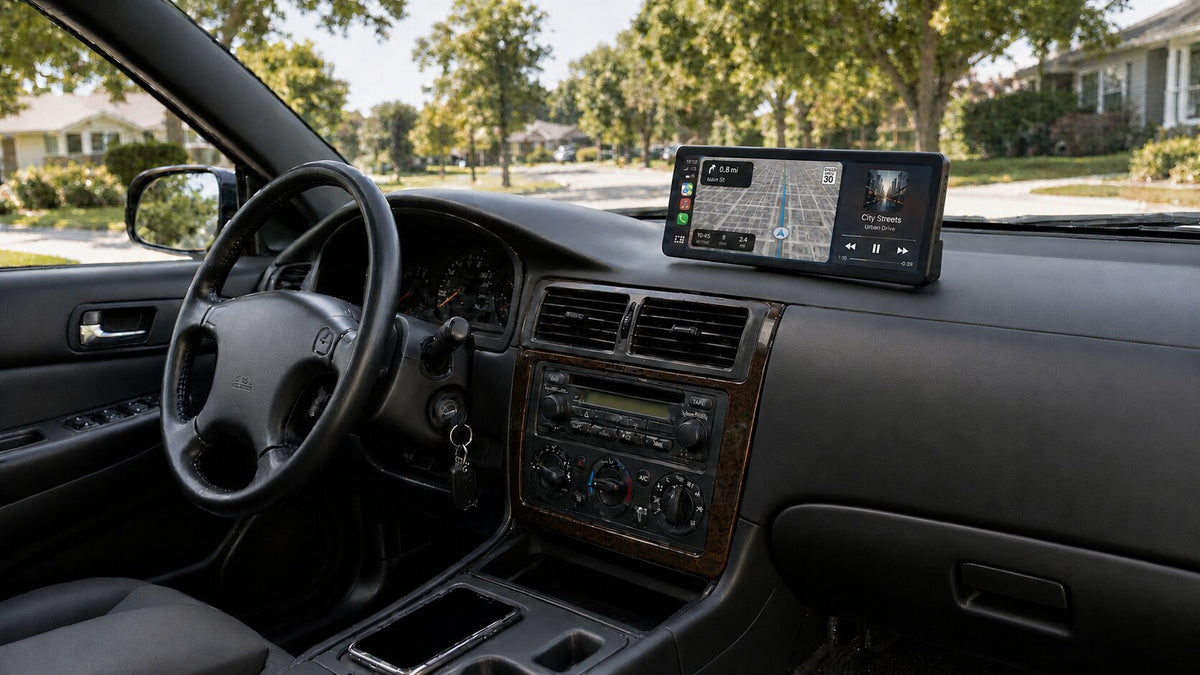
Bluetooth, AUX, FM, or Built-In Speaker: Which Audio Mode Should You Use?
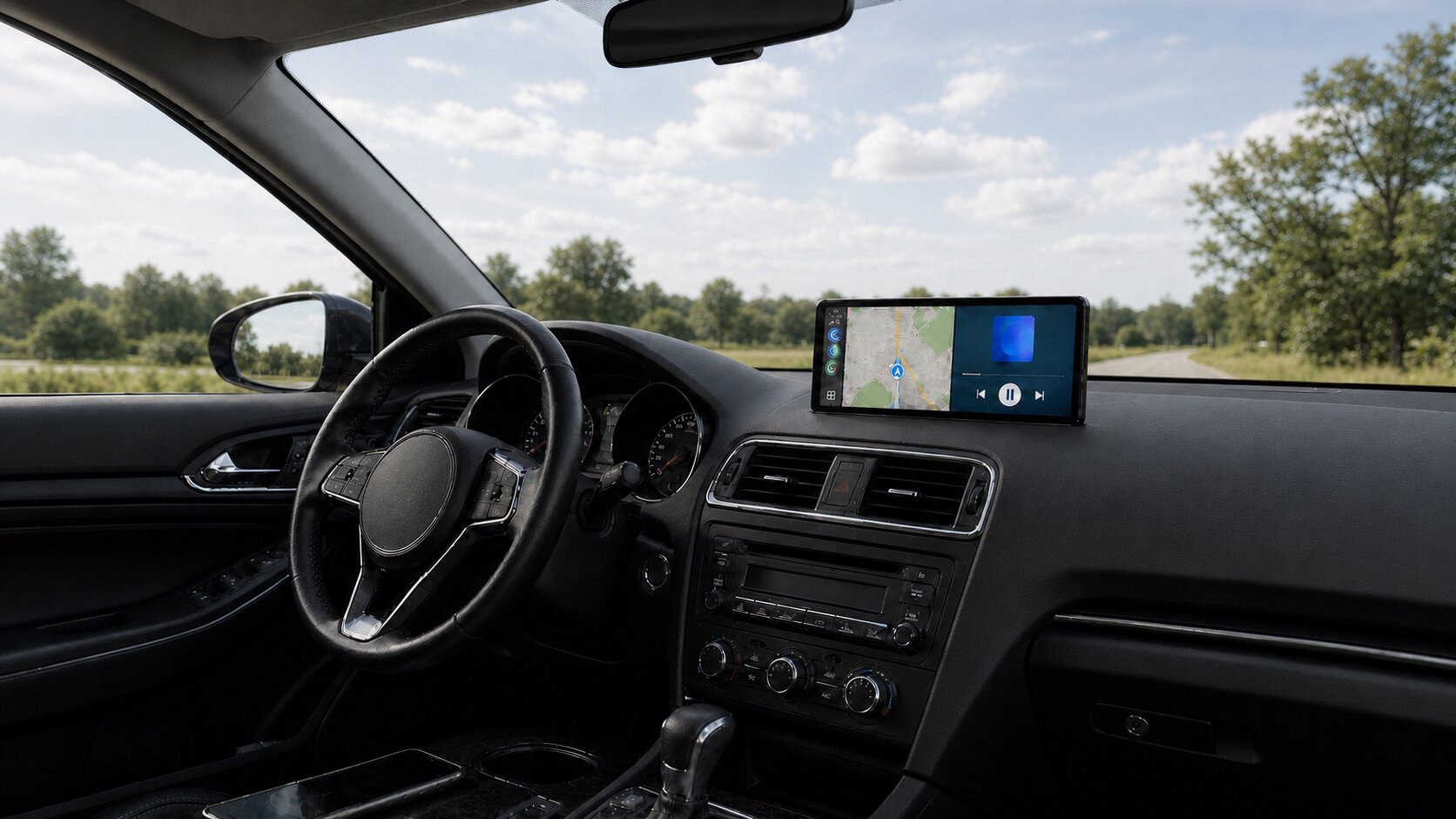
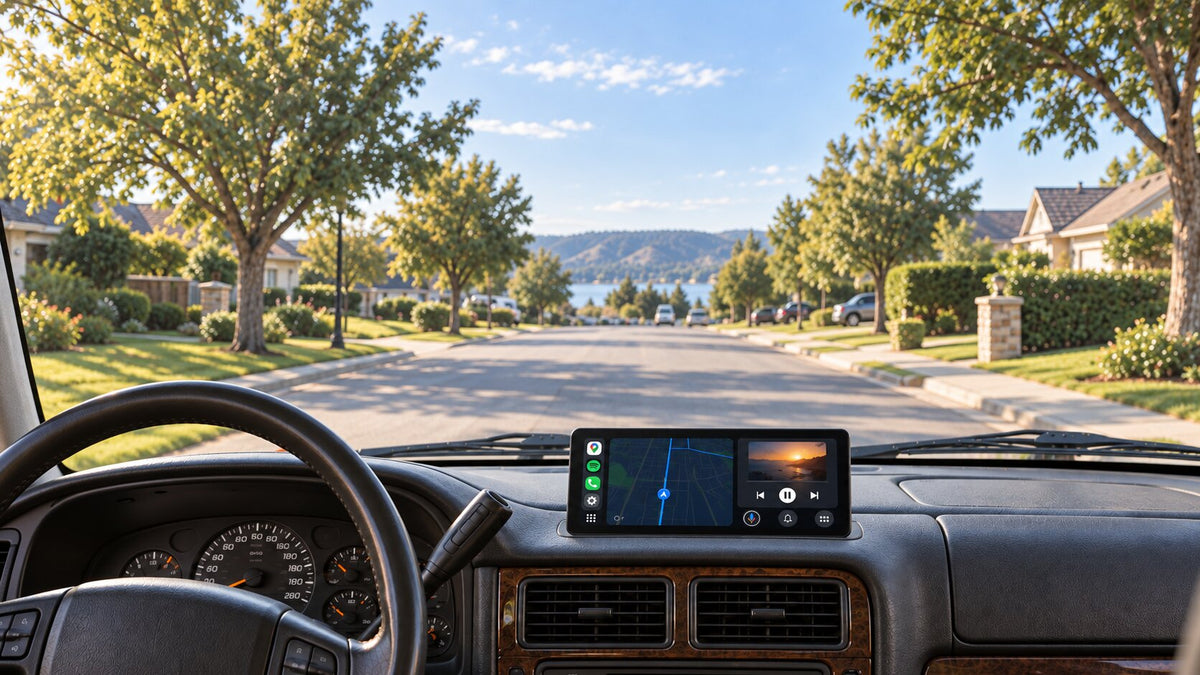
A portable CarPlay screen can add maps, music controls, calls, and messages without replacing your factory stereo. But the screen and the sound do not always follow the same path. Choosing the right CarPlay audio output mode determines whether music plays through your vehicle speakers, the display itself, an AUX input, or an FM frequency.
The best option depends on what your car already has. If its original Bluetooth audio works well, a direct phone-to-car Bluetooth route is usually the most natural place to start. If the car has AUX but no useful Bluetooth media support, AUX may be the practical choice. FM can help when neither Bluetooth nor AUX is available, while the built-in speaker is useful for setup, testing, or temporary listening.
This guide compares Bluetooth, AUX, FM, and built-in speaker playback, explains the route each one uses, and helps you choose an audio setup without changing the original stereo. Complete setup and testing while parked.
Quick Answer: Which CarPlay Audio Mode Is Best?
| Audio Mode | Typical Audio Route | Best For | Main Tradeoff |
|---|---|---|---|
| Display Only Bluetooth Mode | Phone → factory Bluetooth → car speakers | Cars with reliable Bluetooth media and calling | Depends on what the factory Bluetooth system supports |
| AUX output | Phone → CarPlay display → AUX cable → car speakers | Cars with an AUX input but no suitable Bluetooth audio | The phone-to-display stage may still be wireless |
| FM transmission | Phone → CarPlay display → FM frequency → car radio | Older cars with neither Bluetooth media nor AUX | Sound can be affected by local radio interference |
| Built-in speaker | Phone → CarPlay display speaker | Setup, troubleshooting, or temporary use | Not intended to replace a full vehicle audio system |
For many drivers, the recommended order is simple: use the car’s original Bluetooth if it already sounds good; use AUX when the car has a physical input but limited Bluetooth; use FM when those two options are unavailable; and keep the built-in speaker as a convenient fallback.
CarPlay Connection and Audio Output Are Two Different Choices
Before comparing modes, separate the CarPlay connection from the sound output. Wireless CarPlay describes how the phone sends the CarPlay interface to the portable display. It does not automatically tell you which speakers will play the audio.
For example, your phone can connect wirelessly to a CarpodGo display for maps and touch controls while staying connected to the car’s factory Bluetooth for music and calls. In another setup, the phone can connect to the same display while the display sends sound to the stereo through AUX or FM. The screen experience may look similar, but the audio route is different.
That distinction matters because every extra handoff can affect sound quality, delay, call behavior, volume, and control compatibility. When comparing CarPlay sound options, map the complete route instead of looking only at the last connection.
Option 1: Bluetooth Through Display Only Bluetooth Mode
On the CarpodGo T4 and T4 Plus, “Bluetooth” is best understood as Display Only Bluetooth Mode. The CarpodGo screen handles the CarPlay visuals, while the phone sends audio directly to the vehicle’s original Bluetooth system. The display does not act as a generic Bluetooth audio relay between the phone and the car.
The setup separates the two jobs:
- Visuals and touch: phone → CarpodGo display
- Music, prompts, and calls: phone → factory Bluetooth → vehicle audio system
This route is a strong fit when your car already supports Bluetooth music and calling with acceptable sound quality. Because the phone continues using the familiar factory audio path, supported steering-wheel volume and track controls can continue to work as they do during normal phone-to-car Bluetooth playback. The original car microphone can also remain in the call path when the vehicle supports it.
Advantages of Display Only Bluetooth Mode
- Uses the vehicle speakers and factory audio tuning.
- Avoids routing audio through the portable screen before it reaches the car.
- Can preserve compatible steering-wheel media controls and the factory microphone.
- Keeps the original stereo in place while adding a modern CarPlay display.
- May reduce added audio delay compared with a longer display-to-FM or display-to-AUX route.
When Bluetooth Is Not the Best Choice
Some older vehicles support Bluetooth calls but not Bluetooth music. Others have a Bluetooth implementation with noticeable delay, unreliable reconnection, or limited controls. Display Only Bluetooth Mode cannot add capabilities that the factory system does not already provide. If ordinary phone-to-car Bluetooth playback is poor, test AUX or another compatible route.
For a deeper explanation of how the visual and audio paths stay separate, read What Is Display Only Bluetooth Mode?
Option 2: AUX Output
AUX is a physical analog audio connection. In a common portable-screen setup, a compatible cable runs from the display’s AUX output to the vehicle’s AUX input. The car stereo is switched to the AUX source, and the vehicle speakers play the signal coming from the screen.
This mode is useful when the car has an AUX jack but does not support Bluetooth music, or when its Bluetooth connection is inconsistent. The last stage—from the display to the stereo—is wired, so it is not affected by FM frequency congestion.
Advantages of AUX
- Uses the vehicle’s full speaker system.
- Provides a direct physical connection from the display to the stereo.
- Avoids the local radio interference that can affect FM transmission.
- Works with many older factory and aftermarket stereos that include an AUX input.
AUX Limitations to Understand
An AUX cable does not necessarily make the entire CarPlay audio route wired. With wireless CarPlay, sound may still travel from the phone to the portable display wirelessly before leaving the display through the AUX cable. The full route is usually:
Phone → wireless CarPlay display → AUX cable → factory stereo
This extra stage can behave differently from direct phone-to-car Bluetooth. Call microphone routing and steering-wheel controls may also differ because the factory stereo sees an analog AUX source rather than a Bluetooth media session. Test music, navigation prompts, calls, and controls separately before choosing AUX as your everyday mode.
Use a cable that fits securely and route it away from controls, pedals, sharp edges, and moving trim. If you hear buzzing, test with the vehicle parked, reseat the plugs, reduce unnecessary cable length, and compare another known-good cable.
Option 3: FM Transmission
FM transmission sends audio from the portable display to the car radio on a selected FM frequency. You tune the display and the vehicle radio to the same unused frequency, then play CarPlay audio through the factory speakers.
FM is valuable for older vehicles that have a functioning radio but lack Bluetooth media and AUX. It requires no stereo replacement and no cable between the display and the radio. That makes it widely usable, but its performance depends more heavily on the local radio environment.
Advantages of FM
- Works with many vehicles that have only a basic FM radio.
- Plays through the vehicle speakers without an AUX cable.
- Provides a practical fallback when Bluetooth audio and AUX are unavailable.
FM Limitations to Understand
Sound quality can change as you drive between areas. A frequency that is quiet in one city may overlap with a station elsewhere. Static, bleed-through, or a weak signal can reduce clarity. FM also adds another wireless stage after the phone-to-display connection, so it is usually not the first choice when reliable factory Bluetooth or AUX is available.
For a cleaner result, choose a frequency with no audible station, set the same frequency on the display and radio, and save it as a preset. If interference appears during a trip, wait until safely parked before selecting another frequency.
Option 4: The Built-In Speaker
The built-in speaker plays audio directly from the portable display. It requires no pairing with the car stereo, no AUX cable, and no FM tuning. That simplicity makes it useful when you first install the screen or need to identify whether a sound problem comes from the display or from the vehicle audio path.
When the Built-In Speaker Makes Sense
- Initial setup before connecting the vehicle audio system.
- Short-term use while troubleshooting Bluetooth, AUX, or FM.
- Testing whether CarPlay music and navigation prompts reach the display.
- Temporary listening in a vehicle with no compatible audio input.
A compact screen speaker is not designed to replace the power, stereo separation, bass response, or cabin coverage of a complete vehicle sound system. For daily music and calls, use the factory speakers when a suitable connection is available.
Best Audio Mode by Vehicle Type
Your Car Has Bluetooth Music and Calling
Start with Display Only Bluetooth Mode. First pair the phone directly with the vehicle and confirm that music, calls, and navigation prompts work normally. Then connect the phone to CarPlay on the portable display and keep the car selected as the phone’s audio destination.
Your Car Has Bluetooth Calling but No Bluetooth Music
Do not assume that a successful phone-call pairing also supports stereo media. If music does not play over the factory Bluetooth connection, use AUX when available. FM is the fallback when the car has no AUX input. Test call routing separately because the best media path and call path may not be identical.
Your Car Has AUX but No Bluetooth
Use the screen’s AUX output and select AUX on the factory stereo. This normally gives a more predictable connection than FM because it is not competing with local stations. Confirm the volume at the phone, display, and stereo, then test navigation prompts and a parked call.
Your Car Has Only an FM Radio
Use FM transmission and choose a clear frequency. Save it as a radio preset for faster daily use. If local interference changes often, compare an external Bluetooth-to-FM or Bluetooth-to-AUX solution that is compatible with your vehicle, but verify the complete audio route before buying an accessory.
You Use the Display in More Than One Car
Save the most suitable mode for each vehicle rather than forcing one connection method everywhere. A newer car may work best with its original Bluetooth, while an older second car may need AUX or FM. The built-in speaker is useful during the first setup in each vehicle.
How to Set Up Each Audio Output on CarpodGo T4 or T4 Plus
Set Up Display Only Bluetooth Mode
- Park the vehicle and pair the phone with the car’s original Bluetooth system.
- Play music and make a short parked test call to confirm the factory connection works.
- Connect the phone to CarPlay on the CarpodGo screen.
- Open the display’s sound-output settings and select Dual BT (Display only) or the equivalent Display Only option shown by the current interface.
- Confirm that the CarpodGo screen shows CarPlay while audio comes from the vehicle speakers.
- Test music, navigation prompts, a call, and supported steering-wheel controls.
Set Up AUX Output
- Connect a compatible AUX cable from the display to the vehicle’s AUX input.
- Select AUX as the source on the factory stereo.
- Select AUX in the display’s sound-output settings.
- Start with moderate volume on the phone, screen, and stereo, then adjust gradually.
- Test for stable sound, unwanted noise, prompt volume, and call behavior.
Set Up FM Transmission
- Find an FM frequency with no clear station while the car is parked.
- Set the same frequency on the CarpodGo screen and vehicle radio.
- Select FM as the display’s sound output.
- Play familiar audio and adjust levels without pushing either device into distortion.
- Save the frequency as a radio preset and retest after driving to another area.
Use the Built-In Speaker
- Select the built-in speaker in the display’s sound-output settings.
- Play a downloaded track or navigation preview.
- Set the display volume to a comfortable level.
- If the speaker works but the car speakers do not, troubleshoot the selected Bluetooth, AUX, or FM route.
The current CarpodGo FAQ explains Display Only Bluetooth behavior and alternatives for vehicles without Bluetooth. Menu labels can change with interface or firmware updates, so follow the manual and on-screen wording for your exact model.
How to Compare CarPlay Audio Output Modes Fairly
Do not compare one mode using streaming music and another using a phone call. Keep the test controlled so the route is the main variable.
- Park in the same location with the engine and electrical system in the same state.
- Use the same phone, app, and downloaded audio track.
- Match perceived volume as closely as practical.
- Test play, pause, track change, and navigation-prompt timing.
- Make a short parked call and ask the other person about microphone clarity.
- Check whether supported steering-wheel volume and track buttons work.
- Repeat the test after restarting the phone and display if results are inconsistent.
Choose the mode that performs consistently in the tasks you use every day. A small theoretical advantage matters less than reliable reconnection, clear prompts, and understandable calls in your specific vehicle.
Common Audio Problems and What to Check
| Problem | Check First | Useful Test |
|---|---|---|
| No sound | Selected phone destination, display mode, and stereo source | Switch briefly to the built-in speaker to confirm audio reaches the display |
| Bluetooth connects but music does not play | Whether the vehicle supports Bluetooth media, not only calls | Play music with CarPlay disconnected and the phone paired only to the car |
| AUX is quiet or noisy | Cable seating, cable condition, and gain at each device | Reseat both plugs and compare a known-good cable at moderate volume |
| FM has static | Frequency congestion and matching frequencies | Select another unused frequency while parked |
| Calls use the wrong microphone | Current call-audio destination and selected sound mode | Compare a factory-Bluetooth call with a display-audio call |
| Audio controls react late | Number of handoffs in the audio route | Compare the current mode with direct phone-to-car Bluetooth |
If you are specifically troubleshooting slow controls, late prompts, or call lag, compare the current route with direct phone-to-car Bluetooth and change only one connection at a time. This helps reveal whether the delay begins at the phone, the portable display, or the vehicle audio stage.
Frequently Asked Questions
What is the best CarPlay audio output mode?
If the vehicle already has reliable Bluetooth media and calling, Display Only Bluetooth Mode is usually the best starting point because the phone sends sound directly to the factory system. AUX is a practical second choice for cars with an audio input but limited Bluetooth. FM is useful when neither is available, and the built-in speaker works best for setup or temporary use.
Is AUX better than Bluetooth for a portable CarPlay screen?
Not in every vehicle. A screen-to-car AUX cable provides a physical final connection, but wireless CarPlay audio may still travel from the phone to the screen first. Direct phone-to-car Bluetooth through Display Only Bluetooth Mode can use a shorter route when the factory Bluetooth system performs well.
Does FM transmission work in any car?
FM transmission requires a working FM radio and a usable local frequency. Performance depends on radio conditions, so it should not be described as universally interference-free. Confirm that your radio can tune to the chosen frequency and test it where you normally drive.
Can I use the factory steering-wheel controls?
Supported volume and track controls can continue working when the phone remains connected to the car’s original Bluetooth system in Display Only mode. Actual behavior depends on what the vehicle already supports during normal Bluetooth playback. AUX, FM, and built-in speaker modes may not preserve the same control path.
Why is there no sound even though CarPlay is connected?
CarPlay can be connected visually while the phone, display, and stereo are set to different audio destinations. Check the phone’s current output, the display’s sound-output mode, and the stereo’s selected source. Then test the built-in speaker to isolate the vehicle-audio stage.
Does an AUX cable remove all wireless audio delay?
No. If the phone is using wireless CarPlay, sound may still reach the display wirelessly before the display sends it through AUX. AUX removes the wireless FM stage, but it does not automatically make the full route wired.
Should I use the built-in speaker for calls?
It can be used as a fallback when the selected display mode supports it, but a compatible factory Bluetooth system will usually provide a more integrated cabin setup. Compare microphone clarity, speaker volume, and call routing while parked.
Final Recommendation
Choose your CarPlay audio output mode by starting with the vehicle’s best existing interface. Use Display Only Bluetooth Mode when the original Bluetooth system already handles music and calls well. Choose AUX when a physical input is available but Bluetooth media is not. Use FM when the car has only a radio, and keep the built-in speaker for setup, testing, or temporary playback.
The CarpodGo T4 and T4 Plus support Display Only Bluetooth Mode, AUX output, FM transmission, and a built-in speaker, so you can match the sound route to the interfaces already in your vehicle. The goal is not to use the most complicated option—it is to keep the screen modern, the audio route clear, and the factory stereo working the way you prefer.

Commenta
Questo sito è protetto da hCaptcha e applica le Norme sulla privacy e i Termini di servizio di hCaptcha.