


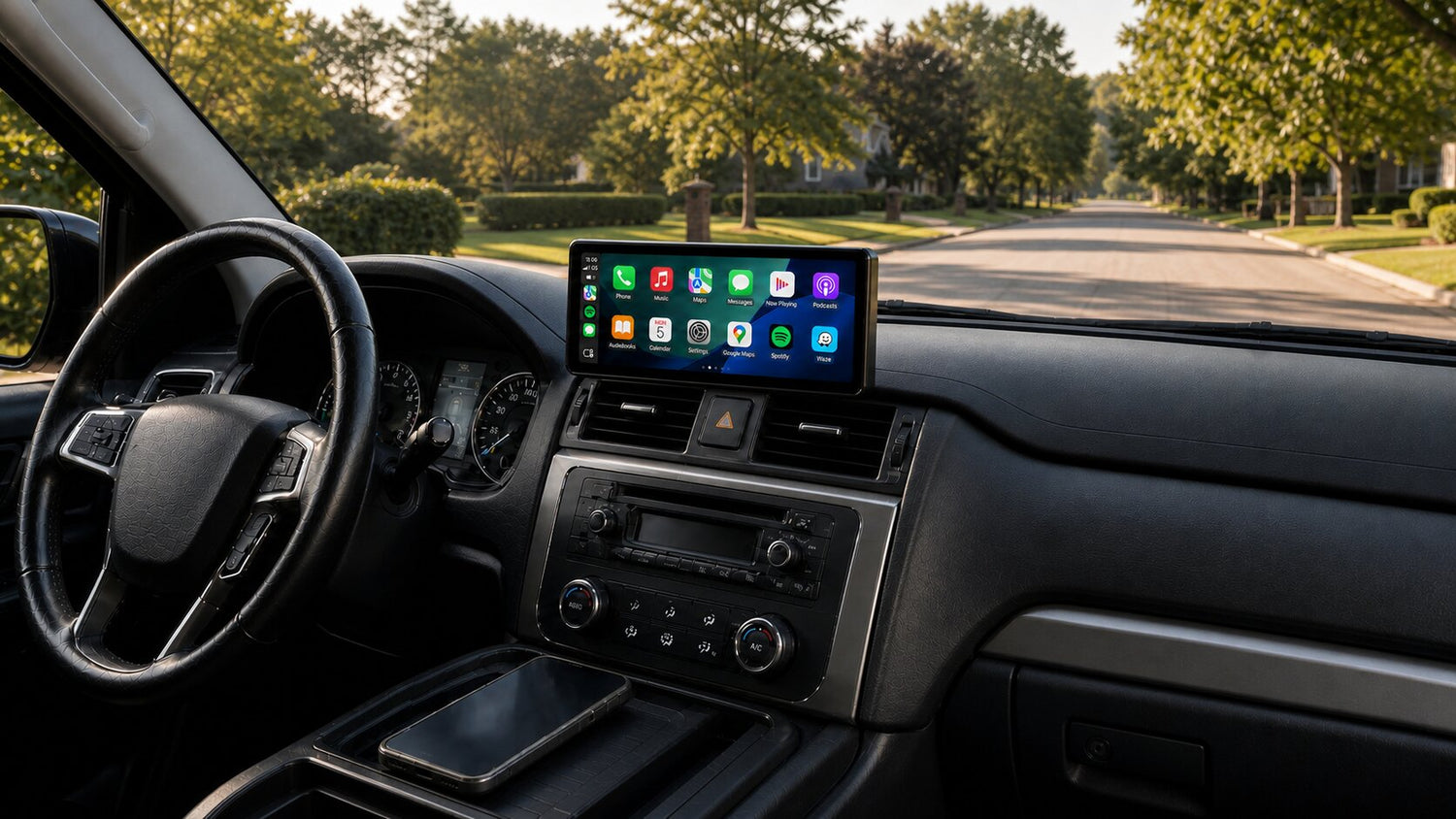
Display Only Bluetooth Mode vs Regular Bluetooth CarPlay Audio
Wireless CarPlay makes it easy to put maps, music, calls, messages, and compatible apps on a dashboard display without connecting a cable every time you drive. However, the screen is only one part of the experience. The way audio travels from your phone to your car can affect sound quality, control response, call handling, and CarPlay audio delay.
Display Only Bluetooth Mode separates the display path from the audio path. The CarpodGo screen handles the CarPlay interface, while your phone stays connected to the vehicle's original Bluetooth system for music, navigation prompts, and calls. By comparison, many conventional portable-screen setups send audio through the screen before passing it to the car through FM, AUX, or the screen's built-in speaker.
This guide explains the difference in plain language, shows how each connection works, and helps you decide which setup is better for your vehicle.
Quick Answer: What Is the Main Difference?
With a conventional portable CarPlay audio route, the display participates in sound output. Your phone sends CarPlay data to the portable screen, and the screen then plays the audio itself or passes it to the vehicle through another output method.
With Display Only Bluetooth Mode, the CarpodGo device focuses on the CarPlay visuals and touch interface. Your phone sends audio directly to the vehicle's original Bluetooth system, so the portable screen is not an extra audio relay.
| Comparison | Display Only Bluetooth Mode | Conventional Portable-Screen Audio Route |
|---|---|---|
| Display path | Phone to CarpodGo display | Phone to portable CarPlay display |
| Audio path | Phone directly to the car's Bluetooth or compatible AUX setup | Phone to display, then display to FM, AUX, or built-in speaker |
| Vehicle speakers | Used through the car's existing audio connection | Used only if the selected output sends sound from the display to the car |
| Original microphone | Can remain available when the phone-to-car Bluetooth connection supports it | May depend on the display and selected output route |
| Steering-wheel media controls | Can continue working through the original phone-to-car Bluetooth connection where supported | Compatibility varies by display, output mode, and vehicle |
| Potential delay | Shorter audio route can help reduce delay | Extra relay or processing steps can add delay |
| Best fit | Cars with a Bluetooth system the driver already likes | Cars that need FM, AUX, or a temporary built-in-speaker solution |
Note: “Regular Bluetooth CarPlay audio” is not one universal industry-standard mode. In this article, it refers to common portable-display setups in which the screen participates in the audio route instead of leaving audio directly between the phone and the vehicle.
What Regular Bluetooth CarPlay Audio Usually Means
A portable CarPlay screen must provide some way for you to hear music, calls, Siri, and navigation guidance. Depending on the product and the car, the screen may use one of several output methods:
- FM transmission: The screen sends audio to an unused FM frequency that you select on the factory radio.
- AUX output: The screen sends audio through a cable to the vehicle's AUX input.
- Built-in speaker: The screen plays audio through its own small speaker.
- Bluetooth relay: On some products, the display participates in passing audio to another Bluetooth destination.
These options can be useful, especially in vehicles without a suitable Bluetooth connection. The tradeoff is that audio may take an indirect route: phone to portable screen, then screen to the car. Every additional handoff can introduce more processing, another volume setting, or another possible compatibility point.
That does not mean every conventional setup will sound bad or have an obvious delay. Performance varies with the phone, display, vehicle, wireless conditions, and chosen output. The important point is that the portable display remains part of the audio chain.
What Display Only Bluetooth Mode Does
Display Only Bluetooth Mode changes the division of work between the screen and the vehicle:
- The CarpodGo display presents the wireless CarPlay interface.
- Your phone remains connected to the vehicle's original Bluetooth system.
- The car handles music, navigation prompts, calls, and voice audio through its existing speakers.
- Supported factory controls continue communicating through the phone-to-car Bluetooth connection.
The result is a two-path setup:
Visuals and touch: Phone → CarpodGo display
Audio and supported factory controls: Phone → vehicle Bluetooth system
The CarpodGo screen still gives you the modern CarPlay interface, but it does not need to become the middleman for sound. This can be especially useful in an older vehicle that already has good Bluetooth audio but lacks built-in CarPlay.
Display Only Bluetooth Mode and Wireless CarPlay Audio Quality
A portable display's built-in speaker is convenient for testing or temporary use, but it is not a replacement for a vehicle's full speaker system. FM transmission can work in cars without Bluetooth or AUX, although local interference and frequency congestion may affect consistency. A screen-to-car AUX connection can be stable, but the front half of the wireless route still sends audio through the portable display.
Display Only Bluetooth Mode lets the vehicle use the same Bluetooth audio connection it normally uses with the phone. If you are already satisfied with that connection, keeping it in place can help preserve the familiar cabin sound, volume behavior, call handling, and overall listening experience.
This is why Display Only Bluetooth Mode can improve perceived wireless CarPlay audio quality. It does not magically upgrade the vehicle's speakers or Bluetooth codec. Instead, it avoids replacing a known, working phone-to-car audio route with a longer route through the portable screen.
Can Display Only Bluetooth Mode Reduce CarPlay Audio Delay?
It can help. Audio delay often becomes more noticeable when sound moves through multiple wireless or processing stages. A conventional route may look like this:
Phone → portable CarPlay display → FM or other output → vehicle speakers
Display Only Bluetooth Mode simplifies the audio side:
Phone → vehicle Bluetooth → vehicle speakers
Removing an unnecessary relay can reduce the opportunity for extra latency. This may make navigation prompts feel better timed, track controls feel more immediate, and calls feel closer to the vehicle's normal Bluetooth behavior.
However, no audio mode can guarantee zero delay in every car. Bluetooth implementation, phone software, wireless interference, vehicle processing, and app behavior can all affect latency. Display Only Bluetooth Mode is best understood as a cleaner audio-routing strategy, not an absolute cure for every delay issue.
What Happens to Steering-Wheel Controls and the Factory Microphone?
One practical advantage of keeping the phone connected to the original car Bluetooth system is that the car can continue interacting with the phone in the familiar way. According to the CarpodGo FAQ, supported multifunction steering-wheel controls can manage volume and track navigation while the phone is connected to the vehicle's Bluetooth system. The car's original microphone can also remain in use for calls and voice interaction in supported setups.
This matters because a portable display does not need to imitate every part of the factory audio system. CarpodGo provides the visual interface, while the vehicle continues doing the jobs it already handles well.
Compatibility still depends on the vehicle and the functions its original Bluetooth connection exposes to the phone. A steering-wheel button that does not control phone audio during normal Bluetooth playback should not be expected to gain that function simply because CarPlay is displayed on a portable screen.
Who Benefits Most from Display Only Bluetooth Mode?
Drivers of Older Cars with Working Bluetooth
Many older vehicles have Bluetooth calling and music but no factory CarPlay screen. Display Only Bluetooth Mode lets those drivers add a modern interface without replacing the stereo or abandoning the original audio connection.
Drivers Who Care About Music Quality
If the car's direct Bluetooth connection already sounds better than FM transmission or a small external speaker, separating the visual and audio paths is the logical choice.
Drivers Who Use Calls and Voice Features Frequently
Keeping the phone connected to the vehicle can preserve the familiar call path and, where supported, the original microphone. That can make daily calling and voice-assistant use feel more natural.
Drivers Who Want Factory Controls to Remain Useful
When volume and track buttons already work with normal phone Bluetooth playback, Display Only Bluetooth Mode can allow that established control relationship to continue while CarPlay appears on the CarpodGo screen.
Drivers Sensitive to Audio Lag
If late navigation prompts, slow track-control response, or call delay are noticeable in a multi-step audio setup, a shorter direct phone-to-car route may improve the experience.
When Another Audio Mode May Be More Practical
Display Only Bluetooth Mode works best when the vehicle already has a suitable audio connection. Another output may be necessary when:
- The car does not support Bluetooth audio.
- The factory Bluetooth system supports calls but not music streaming.
- The Bluetooth connection is unreliable or has poor sound quality.
- You are using the display temporarily in a vehicle you do not want to pair with.
The CarpodGo T4 and T4 Plus provide four audio output choices: Display Only Bluetooth Mode, FM transmission, AUX output, and a built-in speaker. That flexibility allows you to choose a route that matches the vehicle instead of forcing one connection method on every car.
For a car without Bluetooth but with AUX, an AUX solution may be the better starting point. If neither Bluetooth nor AUX is available, FM can provide broad compatibility. The built-in speaker is useful as a backup or for initial setup, but most drivers will prefer the vehicle's full speaker system for everyday listening.
How to Set Up Display Only Bluetooth Mode
- Pair your phone with the vehicle's original Bluetooth system as you normally would.
- Confirm that music and calls play correctly through the car before adding another connection.
- Connect the phone to CarPlay on the CarpodGo display.
- Open the CarpodGo sound-output settings and select Display Only Bluetooth Mode. Some interface versions may label it “Dual BT (Display only).”
- Play music and start a navigation route to confirm that both media and guidance come through the vehicle speakers.
- Test volume, track buttons, a call, and the vehicle microphone where safe and legal to do so.
If sound comes from the CarpodGo unit instead of the car, first confirm that the phone is still connected to the vehicle for media audio and calls. Then recheck the selected sound-output mode on the display. Because menu names can vary by firmware, refer to the current CarpodGo FAQ and product instructions if the labels differ.
Display Only Bluetooth Mode on CarpodGo T4 and T4 Plus
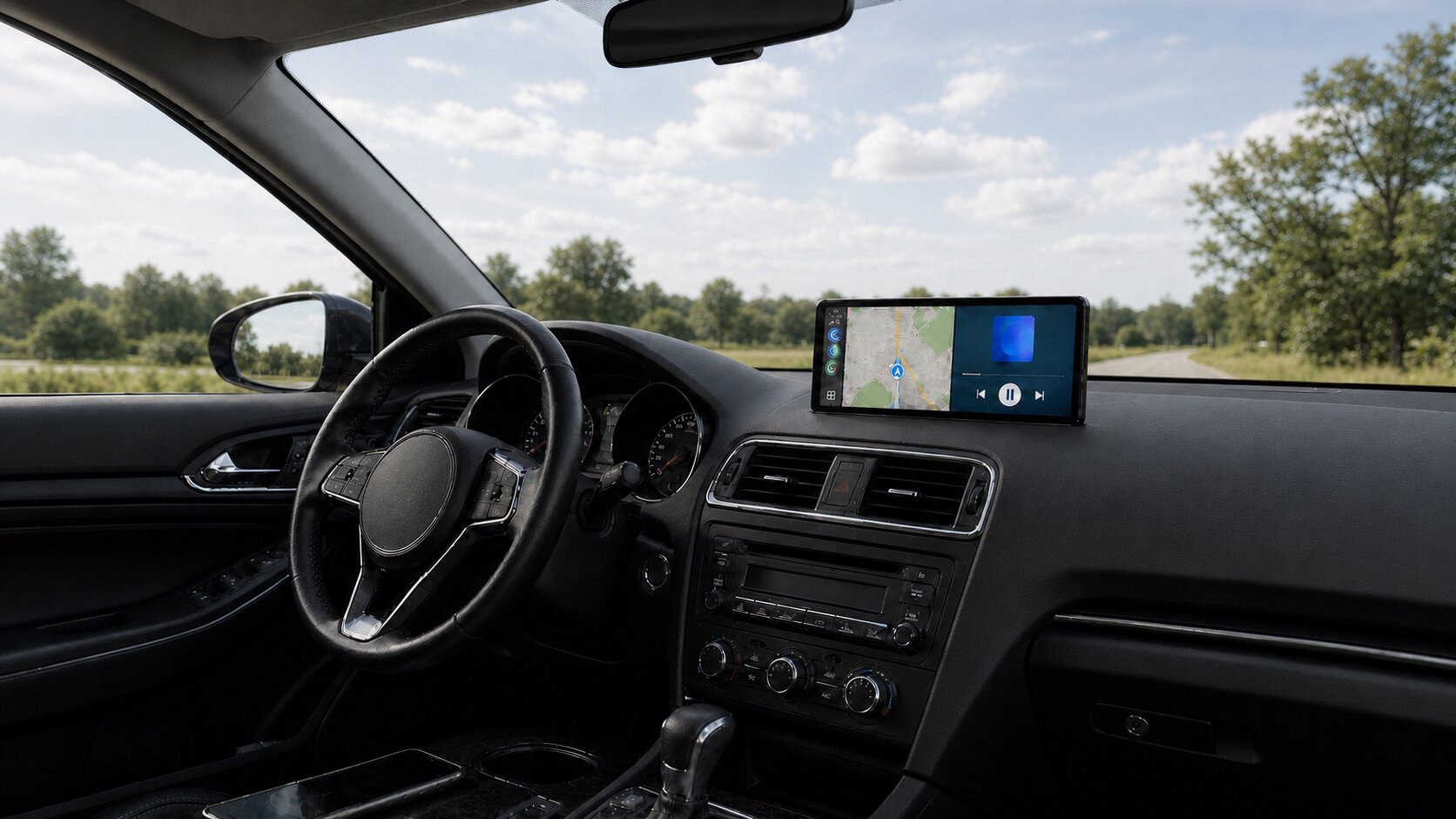
The CarpodGo T4 Series is designed to add CarPlay or Android Auto without replacing the factory stereo. Both the 8.9-inch T4 and 10.9-inch T4 Plus support Display Only Bluetooth Mode, along with wireless and wired CarPlay, wireless and wired Android Auto, FM transmission, AUX output, and a built-in speaker.
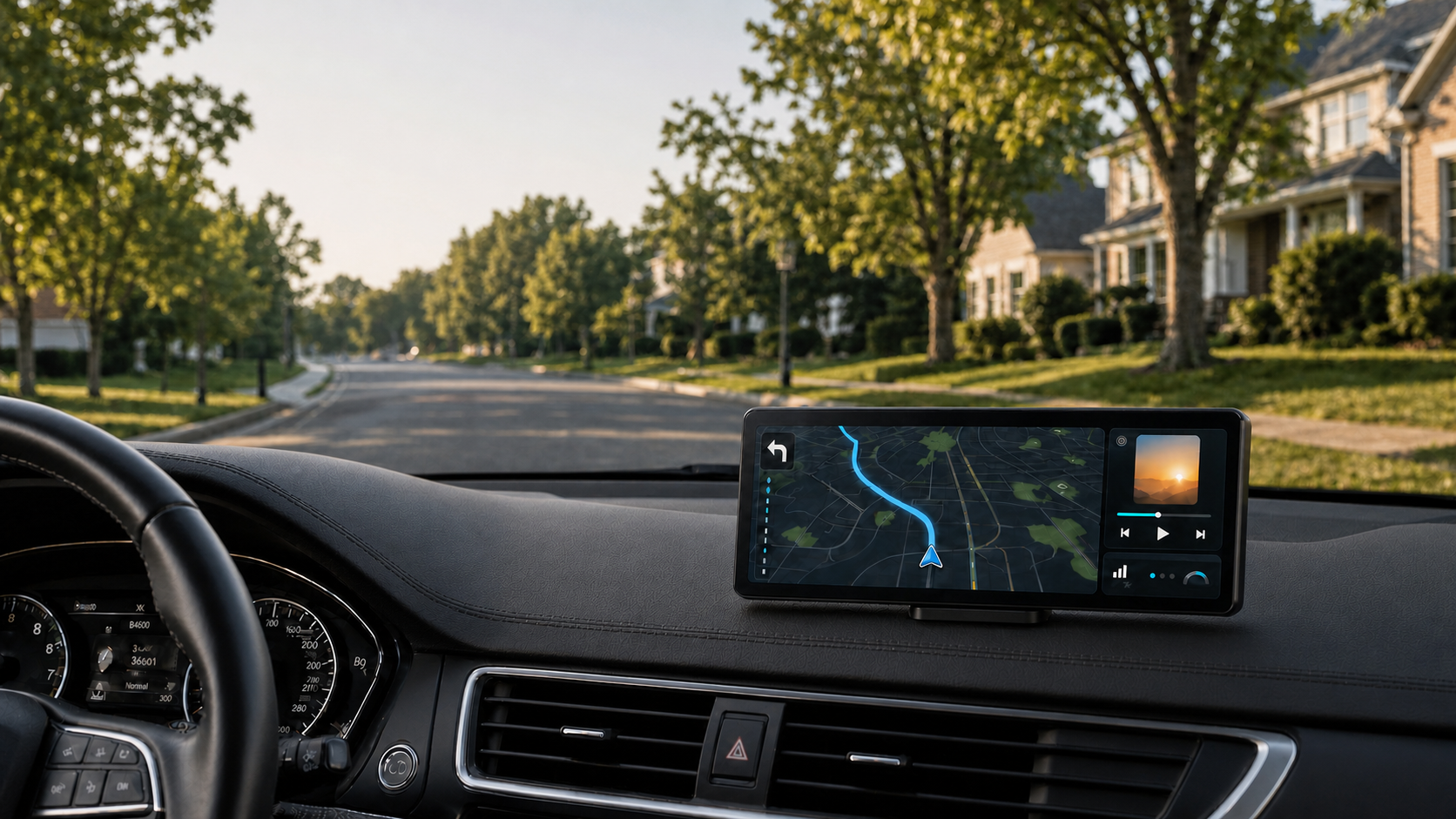
The audio feature is paired with a 1920 × 720 fully laminated IPS display, 1000-nit brightness, 60fps Wireless CarPlay, ambient auto-brightness, and a magnetic quick-release base. The goal is straightforward: upgrade the screen experience while continuing to use the vehicle's original audio system when that is the better route.
Frequently Asked Questions
Is Display Only Bluetooth Mode the same as regular dual Bluetooth?
No. The important distinction is the routing logic. In Display Only Bluetooth Mode, CarpodGo focuses on the CarPlay interface while the phone keeps its direct audio relationship with the vehicle. It should not be described simply as a generic dual-Bluetooth relay.
Does Display Only Bluetooth Mode improve wireless CarPlay audio quality?
It can preserve a better listening experience when the vehicle's direct Bluetooth connection already sounds good. The mode does not improve the speakers themselves; it avoids routing audio through additional output stages that may reduce consistency or add processing.
Can Display Only Bluetooth Mode eliminate all CarPlay audio delay?
No setup can guarantee zero delay in every vehicle. Display Only Bluetooth Mode can help reduce delay by shortening the audio path, but the phone, car, apps, software, and wireless environment still affect performance.
Will my steering-wheel controls still work?
Supported volume and track controls can continue working through the phone's connection to the vehicle. Actual behavior depends on what the car normally supports during Bluetooth media playback.
Which microphone is used for calls?
When the phone remains connected to a compatible vehicle Bluetooth system, the car's original microphone can remain part of the call path. If Display Only Bluetooth Mode is turned off and audio is handled by the screen, the CarpodGo device uses its own integrated microphone.
What if my car does not have Bluetooth audio?
You can use another supported output, such as AUX, FM transmission, or the built-in speaker, depending on the vehicle. If your car has AUX but no Bluetooth streaming, a compatible Bluetooth AUX receiver may also be an option.
Do I need to replace the factory stereo?
No. CarpodGo T4 and T4 Plus are portable displays designed to add CarPlay and Android Auto without replacing the factory stereo or dismantling the dashboard.
Final Recommendation
If your vehicle already has Bluetooth audio that sounds good and supports the controls you use, Display Only Bluetooth Mode is usually the best place to start. It gives you a modern CarPlay display while keeping music, calls, navigation audio, and supported factory controls on the vehicle's established phone connection.
If your car lacks Bluetooth audio, choose the most suitable alternative based on its available inputs. AUX is generally more stable than FM when a compatible input is available, while FM and the built-in speaker remain useful fallback options.
Ready to upgrade the screen without replacing the stereo? Explore CarpodGo T4 and T4 Plus and choose the display size and audio setup that best match your vehicle.

Laisser un commentaire
Ce site est protégé par hCaptcha, et la Politique de confidentialité et les Conditions de service de hCaptcha s’appliquent.