


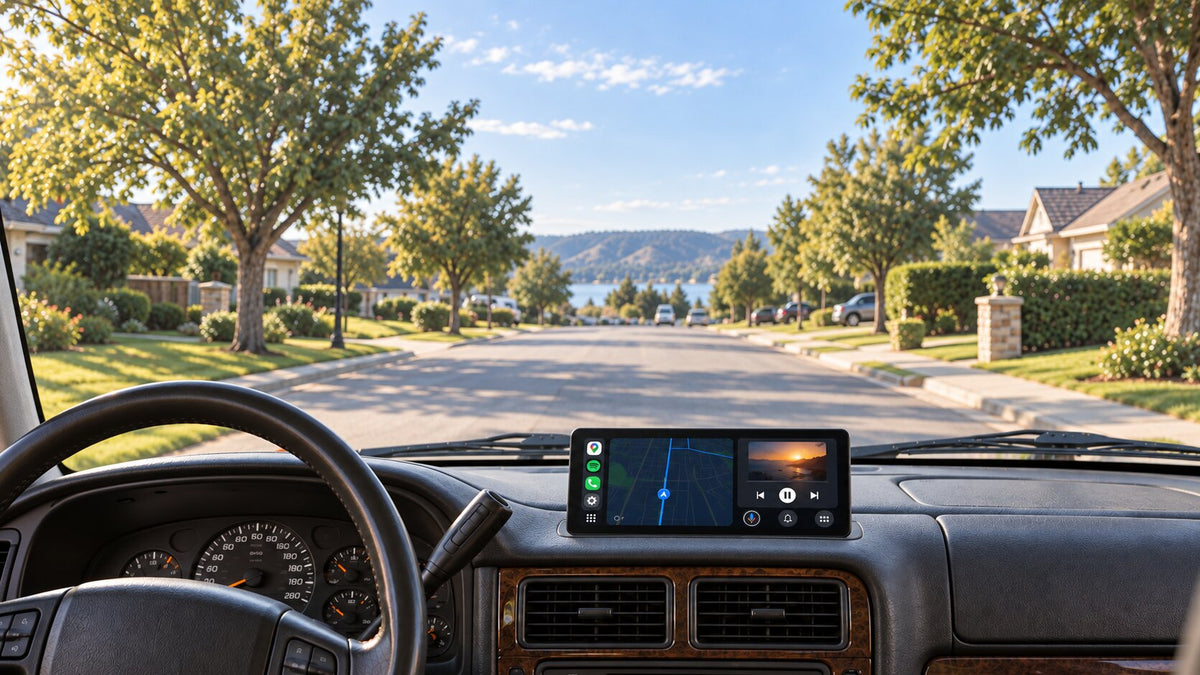
Best Portable Android Auto Display for Cars Without Built-In Android Auto
Your car may still be comfortable, dependable, and enjoyable to drive even if its dashboard feels a generation behind your phone. A portable Android Auto display gives a compatible Android phone a dedicated screen for supported navigation, music, calling, and messaging features while letting you keep your factory stereo.
The best choice depends on your dashboard space, phone compatibility, and audio setup. Start with those three things before comparing screen sizes. A display should fit naturally into your daily routine, with a readable map, a practical connection method, and a clear plan for getting sound through your vehicle speakers.
This guide explains how the upgrade works, when to choose wireless or wired Android Auto, and how to narrow down the CarpodGo options for your car.
Why Add Android Auto to a Car That Does Not Have It?
A phone mount can be enough for occasional directions. But if you regularly alternate between navigation, podcasts, and calls, you may want a dedicated interface positioned where it is easy to glance at. Android Auto brings compatible phone features to a connected display in a driving-oriented layout.
The useful upgrade is access to the apps and services you already use. Supported navigation apps can handle routes, compatible audio apps can supply your listening, and calling and messaging features can help you stay connected. Availability depends on your phone, apps, permissions, and region. Android Auto does not put every phone app on the dashboard.
A portable screen is especially worth considering when you like your car's existing stereo or want to avoid a dashboard replacement project. It adds a separate display instead of requiring you to build the upgrade around the original screen.
How a Portable Android Auto Display Works
The basic setup has four parts: your compatible phone, the portable display, a suitable power connection, and an audio route. The phone supplies Android Auto, the screen presents the interface, and your chosen audio connection determines where you hear it.
Before buying, answer four practical questions:
- Phone: Does your particular Android phone meet the requirements for the connection you want?
- Placement: Is there room for the display and mount without covering important controls or your view?
- Power: Can you use the supplied power equipment and route its cable neatly?
- Sound: Will you use the car's Bluetooth, AUX input, or another supported audio option?
These checks matter more than a broad claim that a screen works with any car. Two vehicles with similar dashboards can have very different audio systems and mounting limitations.
A Portable Display Is Different From a Wireless Adapter
Check what a product actually adds. An adapter intended to convert existing wired Android Auto to wireless is a different purchase from a complete display. If your vehicle has no Android Auto interface, look for a screen that provides that interface and explicitly supports your phone. A USB plug alone does not establish compatibility.
Portable Display Benefits: Keep the Stereo You Already Like
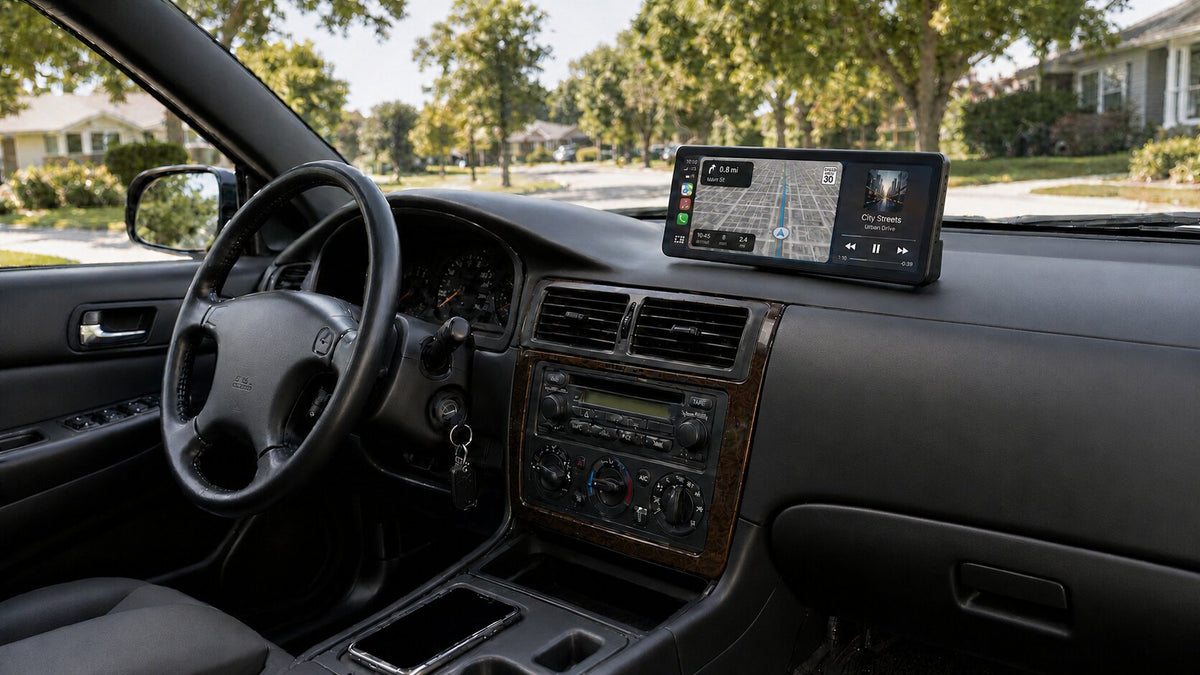
A separate display makes it possible to plan the upgrade around your existing cabin. You can compare mounting positions, screen sizes, and cable routes before committing to a location. This is useful when the original stereo shares its panel with climate controls or other vehicle functions you want to keep accessible.
There are also tradeoffs to consider. A portable unit occupies dashboard space, needs power, and may leave a cable visible. An integrated replacement can suit someone who prioritizes a factory-style appearance and is comfortable with a more involved installation. Choose the approach that fits both your vehicle and the amount of work you want to take on.
For a shared car, think beyond the primary driver. A screen that supports both Android Auto and Apple CarPlay lets you choose the appropriate interface for an Android phone or an iPhone. Check the pairing and phone-selection process rather than assuming both phones will run their interfaces at the same time.
Wireless vs. Wired Android Auto: Which Should You Choose?
Wireless is convenient when you make frequent short trips. Wired is useful if you prefer a physical connection or want another connection option available. For phone eligibility, consult Google's current Android Auto requirements: wired and wireless requirements differ, and wireless use requires a compatible phone with 5 GHz Wi-Fi support.
| Buying consideration | Wireless Android Auto | Wired Android Auto |
|---|---|---|
| Daily routine | Convenient if you prefer not to plug in your phone for each trip. | Useful if connecting a cable is already part of your routine. |
| Compatibility check | Confirm wireless support on both the phone and display. | Confirm wired support, the designated data port, and cable requirements. |
| Cabin setup | Removes the phone's data cable from the connection, but the display still needs power. | Adds a phone cable that needs an accessible, tidy route. |
| Troubleshooting | Check pairing, permissions, and wireless settings. | Check the data cable, port, and connection permissions. |
| Phone charging | Plan separately for charging when needed. | Verify charging capability instead of assuming the data connection supplies fast charging. |
If two people share the car, consider both phones before deciding. A connection that is ideal for one driver may be less convenient for the other. Having both wired and wireless options gives you more flexibility, but it does not remove the need to check each phone's compatibility.
CarpodGo T4 and T4 Plus: Features for Android Users
The CarpodGo T4 and T4 Plus support wireless and wired Android Auto, plus wireless and wired Apple CarPlay. That makes them options for Android drivers and households using both phone systems.
- T4: 8.9-inch display.
- T4 Plus: 10.9-inch display.
- Both: 1920 × 720 resolution, a fully laminated IPS screen, and specified 1000-nit brightness.
- Convenience: Ambient brightness adjustment and a magnetic quick-release base.
Choose between them by checking usable dashboard space and your seated viewing position. Make a paper outline before choosing the larger model. The product page lists screen-unit dimensions of 227 × 98.5 × 19.9 mm for T4 and 261 × 112.5 × 21 mm for T4 Plus; allow additional room for mounting and cables.
The published 60fps specification refers to CarPlay. It should not be treated as an Android Auto frame-rate promise. For Android use, prioritize the confirmed connection modes and physical fit.
When to Consider CarpodGo Mini
If dashboard space is your main constraint, compare the CarpodGo Mini. Its 6.9-inch format is a smaller alternative to the T4 series, and the official listing supports wireless Android Auto and wireless CarPlay.
A smaller screen is worth considering when a larger unit would crowd a vent, compete with the original display, or sit awkwardly in your line of sight. A larger screen may be preferable if you have enough unobstructed space and want a wider view. Judge both from the driver's seat rather than relying only on a product photo.
If wired Android Auto is a purchase requirement, the T4 series explicitly lists that capability. Do not assume identical connection options across the entire range. You can compare the current models in the CarpodGo display collection.
Plan the Audio Connection Before You Buy
Getting Android Auto onto a screen and getting sound through your car are separate decisions. Test what your stereo already does with your phone: can it play music over Bluetooth, handle calls, and receive navigation prompts? A system that supports Bluetooth calling may not offer the same support for music.
The T4 series lists Display Only Bluetooth Mode, AUX output, FM transmission, and a built-in speaker. In Display Only Bluetooth Mode, the display handles visuals while the phone uses the car's audio connection; it is not a generic dual-Bluetooth relay.
Use your existing setup as the starting point. If direct phone-to-car audio already works well, ask how to retain that route with the selected display. If you depend on AUX or FM, check the exact equipment and setup instructions for that option. Avoid assuming that every control or microphone will behave identically across different vehicles.
During setup, test music, a navigation prompt, and a call separately while parked. Hearing music successfully does not prove that every audio function is configured correctly.
A Practical Buying Checklist
1. Check the Phone You Actually Use
Identify its model and Android version, then check the display's connection requirements against Google's guidance. Include a second driver's phone if the car is shared. Resolve compatibility questions before placing the order.
2. Measure the Full Installation Area
Consider the screen body, stand, cable exits, and space needed to reach nearby controls. Sit in your normal driving position when assessing placement. Keep your view, airbags, vents, and essential controls clear.
3. Choose the Audio Route
Write down which input you will select on the stereo and what connects to it. This simple step helps expose missing cables or accessories before the display arrives.
4. Check the Complete Setup Cost
Compare the selected configuration, included mount and power equipment, and any accessories needed for your car. Use the current listing for price and availability rather than an old review or promotional screenshot.
5. Think Through a Normal Week
Consider short errands, a longer drive, another driver taking the car, and parking overnight. Decide where the phone will sit, how it will charge, and whether you want to remove the screen when parked. The right setup should make those routines straightforward.
First Setup: What to Test While Parked
- Position the display. Follow the supplied mounting instructions and check the view from your normal seat position.
- Connect power. Use the specified equipment and secure cables away from driving controls.
- Connect the phone. Follow the model's wireless pairing or wired connection instructions and review the phone's prompts.
- Set the audio route. Select the intended output and the corresponding stereo input.
- Test supported features. Check navigation, music, calls, and the controls you expect to use.
- Check the next startup. Confirm that the intended phone reconnects as expected before relying on the setup for a trip.
If something does not work, isolate the problem. A blank interface suggests a different issue from a working map with no sound. Check the affected connection first, and change one setting at a time so you can tell what helped.
Frequently Asked Questions
Can I add Android Auto without replacing my stereo?
Yes. A compatible portable Android Auto display provides a separate interface while your original stereo remains in place. You still need a suitable mounting location, power supply, compatible phone, and working audio route.
Does my car need built-in Android Auto?
No. The portable display supplies the Android Auto interface. Check that you are purchasing a complete display rather than an adapter intended for a vehicle that already has Android Auto.
Can I use an iPhone with the same screen?
Choose a model that explicitly supports both platforms. On such a display, a compatible Android phone uses Android Auto and an iPhone uses CarPlay. Follow the model's instructions when switching between drivers.
Does wireless mean the screen needs no cables?
No. Wireless describes the phone-to-display connection. The display still requires power, and your audio or charging setup may also use cables.
Will all my Android apps appear on the display?
No. Android Auto presents supported apps and features rather than mirroring every app on your phone. Check availability for the apps you depend on before buying.
What is the best screen size for my car?
The best size is one you can read comfortably without crowding your cabin or obstructing your view. Measure the intended location and compare a physical outline of each model from your normal seating position.
Choose the Display That Fits Your Car and Phone
Start with compatibility, placement, and audio. Once those are settled, choose the screen size and connection options that fit the way you drive. A well-planned portable setup can add the interface you want while preserving the stereo and cabin layout you already enjoy.
Explore CarpodGo T4 and T4 Plus for wired and wireless flexibility, or view CarpodGo Mini when a compact footprint is the priority. To compare the range, browse the CarpodGo portable display collection.

Laisser un commentaire
Ce site est protégé par hCaptcha, et la Politique de confidentialité et les Conditions de service de hCaptcha s’appliquent.